 UsefulTab
How to compress an image to a 20 KB, 50 KB, or 100 KB limit
Exam registration sites, visa portals and job-application forms often cap the photo you upload at a strict size, such as 20 KB, 50 KB or 100 KB. A phone photo is several megabytes, so it is rejected until you shrink it. Compression cannot land on an exact byte count, so the goal is a file at or below your size limit that still looks good.
Need it done now? Drop the photo in, pick the limit, download.
JPG, PNG or WebP in · JPEG or WebP out · in your browser, nothing uploaded
At a glance
| Input | JPG, PNG or WebP. Several files at once are fine. |
|---|---|
| Output | JPEG (the default, and the format most upload forms ask for) or WebP. Not PNG: it is lossless, so its size cannot be dialled down to a limit. |
| Size limit | Any whole number of KB, with presets for 20, 50, 100 and 200 KB. The tool counts 1 KB as 1,024 bytes and shows the result size. |
| Pixel size | Kept if quality alone gets under the limit. Reduced in steps of 15% only when it cannot, and only while Shrink dimensions if needed is ticked. |
| Not covered | An exact width and height as well as a KB limit. Use Prepare Image for Upload for that. |
Step by step
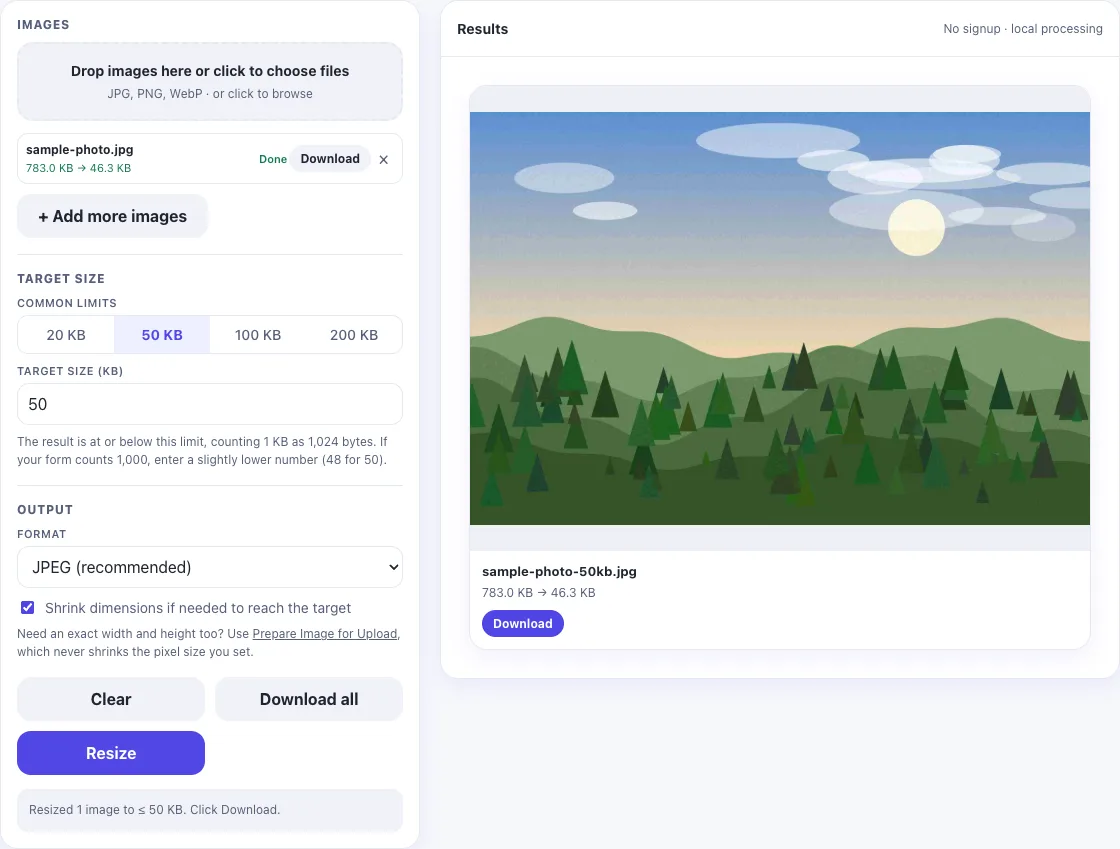
- Open Resize Image to KB and drop in your photo, or click to choose it.
- Pick a limit: tap 20, 50, 100 or 200 KB, or type the number your form states.
- Leave Shrink dimensions if needed ticked unless the form also fixes the pixel size.
- Click Resize, check the size on the result card, and download.
The tool searches for the highest JPEG or WebP quality that still fits under the limit. If even the lowest quality is too big, it makes the image smaller and tries again, so tight limits remain reachable.
Worked example: a 783 KB photo to 50 KB and 20 KB
You can repeat this with our sample file: sample-photo.jpg, a synthetic landscape (no real person or place) of 783.0 KB at 2400 × 1600 pixels. Format JPEG, shrinking allowed:

| Limit | Result | Pixels |
|---|---|---|
| Before | 783.0 KB | 2400 × 1600 |
| 50 KB | 46.3 KB (47,452 bytes) | 2400 × 1600, unchanged |
| 20 KB | 19.9 KB | 1734 × 1156, reduced to fit |
| 20 KB, shrinking off | 27.0 KB, marked “over target” | 2400 × 1600 |
At 50 KB, lowering the quality was enough. At 20 KB the pixels had to go down too, and with shrinking switched off the tool tells you it could not reach the limit instead of handing you a file that would be rejected.
Measured in Chrome on macOS. Other browsers use different JPEG and WebP encoders, so their sizes differ slightly. The result is always checked against your limit before it is marked done.
What controls image file size
- Quality. JPEG and WebP discard detail your eye barely notices. This is the biggest lever and usually the least visible, so it is tried first.
- Pixel dimensions. A 4000 × 3000 photo has 12 million pixels; 800 × 600 has under half a million. When quality alone cannot reach a small limit, fewer pixels is what gets you there.
- Format. JPEG for photos, WebP for slightly smaller files where the form accepts it. PNG stays large for photos.
If it doesn't work
| What you see | Why | What to do |
|---|---|---|
| “over target” on the result | Shrinking is off and the lowest quality is still too big. | Tick Shrink dimensions if needed, or crop the photo first. |
| The form still says the file is too large | Some forms count 1 KB as 1,000 bytes; the tool counts 1,024. | Enter a slightly lower number: 19 for a 20 KB limit, 48 for 50 KB, 97 for 100 KB. Or use Prepare Image for Upload, which lets you pick the convention. |
| The form rejects the pixel size | The tool reduced the dimensions to reach a small limit. | Use Prepare Image for Upload, which keeps the pixel size you set. |
| A transparent logo gets a black background | JPEG has no transparency, so clear areas become black. | Choose WebP if the form accepts it, or put the logo on a solid background first. |
| “Please choose JPG, PNG, or WebP images.”, or the card says “Failed” | The file is not a JPG, PNG or WebP image this browser can read, often an iPhone HEIC photo. | Convert it first with HEIC to JPG. |
| A 20 KB result looks soft | The limit is very tight for a large, detailed photo. | Crop to just the subject with the Image Cropper first. |
A note on privacy
An ID, passport or signature photo is sensitive. Resize Image to KB reads and compresses it on your own device; the file is never uploaded to a server. The result drops the photo's camera metadata, because it is re-encoded from the pixels.